
Uptown Safety Builder: Help and User Manual
Builder is the web app at app.uptownsafety.com. It runs in a browser on a phone, tablet or computer. There is nothing to install. This page is the plain-language manual: how to sign in, what each role can do, and how to do the everyday jobs step by step.
Jump to: Start here · Roles · Getting around and the job tree · TWI and JIBs · Checklists · Employees · Toolbox talks · Library · Analytics and Archive · Admin · Questions · Get help
Start here
Sign in
- Open app.uptownsafety.com.
- Enter your Email and Password. The eye button shows or hides what you typed.
- Tap Sign in.
You stay signed in for 30 days from the last time you used Builder.
Your first sign-in
You do not create your own account. A company admin (or Uptown Safety) invites you by email. 1. Open the invite link. An invite link is good for 7 days. An admin can send a new one. 2. Enter your name and a new password of 10 or more characters, twice. 3. Tap Save password. You are signed in.
Forgot your password
- On Sign in, tap Forgot password?
- Enter your email and tap Send reset link.
- Open the link within one hour, choose a new password and tap Save password.
An admin can also send you a reset. No one at your company or at Uptown Safety can see or set your password.
Your account
Tap your initials at the top right. My account lets you change your name, your language (company default, English or Español), the tabs pinned to the phone bar, and your password. Sign out everywhere signs you out on every phone and computer at once.
Phone or computer
Builder switches to the phone layout when the window is narrower than 760 pixels. The features are the same. On a phone, your pinned modules sit in a bar at the bottom, and More lists everything else you can open.
Who can do what
Everyone who signs in has one role in one company. People in one company never see another company's sheets, checklists, talks, files, workers or records.
| Role | Who it is for | What they can do |
|---|---|---|
| Admin | The client company's safety lead or office manager | Everything in their company: people and access, the company profile, lists, checklists, Company JIBs, the talk library, Library files, the worker roster, every inspection, talk and open item, and company-wide Analytics and Archive. |
| Supervisor | Foremen and field supervisors | Builds their own JIBs and pulls Company JIBs. Starts and finishes inspections and closes the open items they left. Holds toolbox talks and tags in their own people. Edits their own people and records training. Reads the Library. Sees their own Analytics and Archive. Chooses a job in the header. |
| Viewer | Someone who needs to look, not change | Read-only. Opens on Employees. Can read the roster, Archive, SDS, Safety Plans and Library files. |
Workers are roster records, not sign-ins. A worker has a name, trade, phone, certs, skills and training, kept up to date by their supervisor or an admin. At a toolbox talk a worker can scan the talk's QR code to check in on their own phone. That is a check-in, not a Builder account.
An admin can change one person's access to a module under Admin → People: No access, Use or Manage.
Getting around, and the job tree
Builder is organised as Company → Job → Supervisor → People. Jobs are set up by an admin under Admin → Lists → Jobs. The job shown in the header filters what you see, and Builder fills in that job when you start an inspection or a toolbox talk. All jobs shows everything.
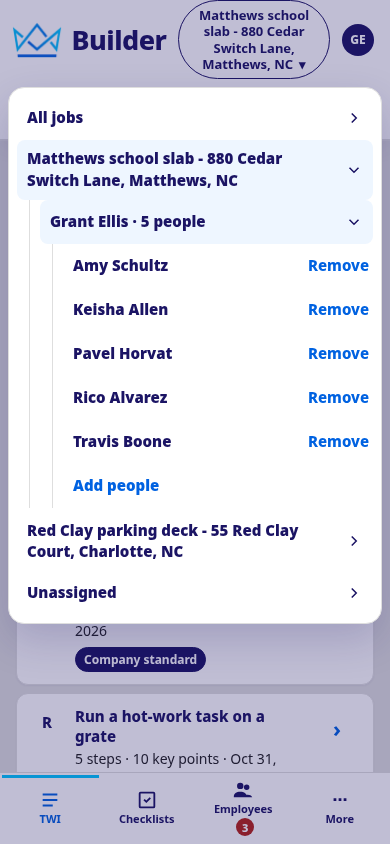
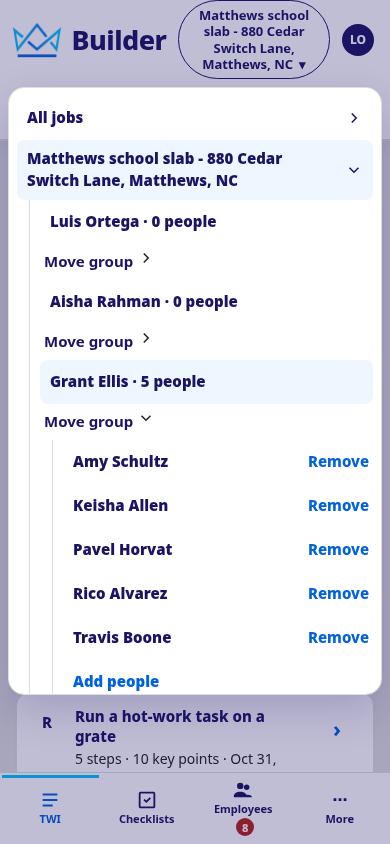
Tap the job button at the top to open the job panel. It is a tree: All jobs, then each job, then the supervisors on a job, then their people. Tap a job to switch to it. Tap a supervisor to open their people.
| Role | What the job panel shows |
|---|---|
| Supervisor | All jobs and each job. The job you are on shows the supervisors who have people on it. Your own group opens first, with a Remove on each person and Add people below them. |
| Admin | The same jobs, but an open job lists every supervisor in the company, including those with 0 people. Each supervisor has Move group. Tap any supervisor, even one with 0 people, to get their people and Add people. |
| Super admin | Inside a company's portal, the same tree an admin gets. |
| Viewer | All jobs and each job, so a viewer can choose a job to look at. No supervisors or people. |
Add and remove people
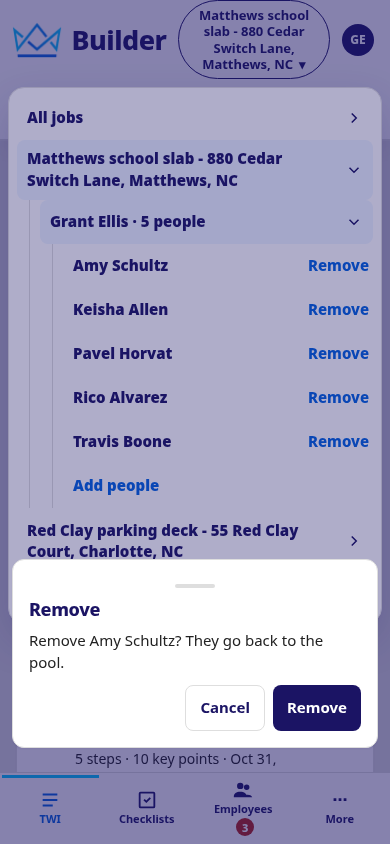
- Remove asks first: Remove name? They go back to the pool. A removed person is not deleted. They stay on the roster and any supervisor can add them.
- Add people has a Search the company box and two groups: the Pool (people with no supervisor) and With another supervisor. Tick a name to add that person.
- A person has one supervisor at a time. If you tick someone who already has another supervisor, Builder asks Move from one to you? and nothing changes until you tap Move.
- Admins: Move group moves everyone from one supervisor to the pool or to another supervisor, after a confirm.
TWI: JIBs, Company JIBs and the TWI Card
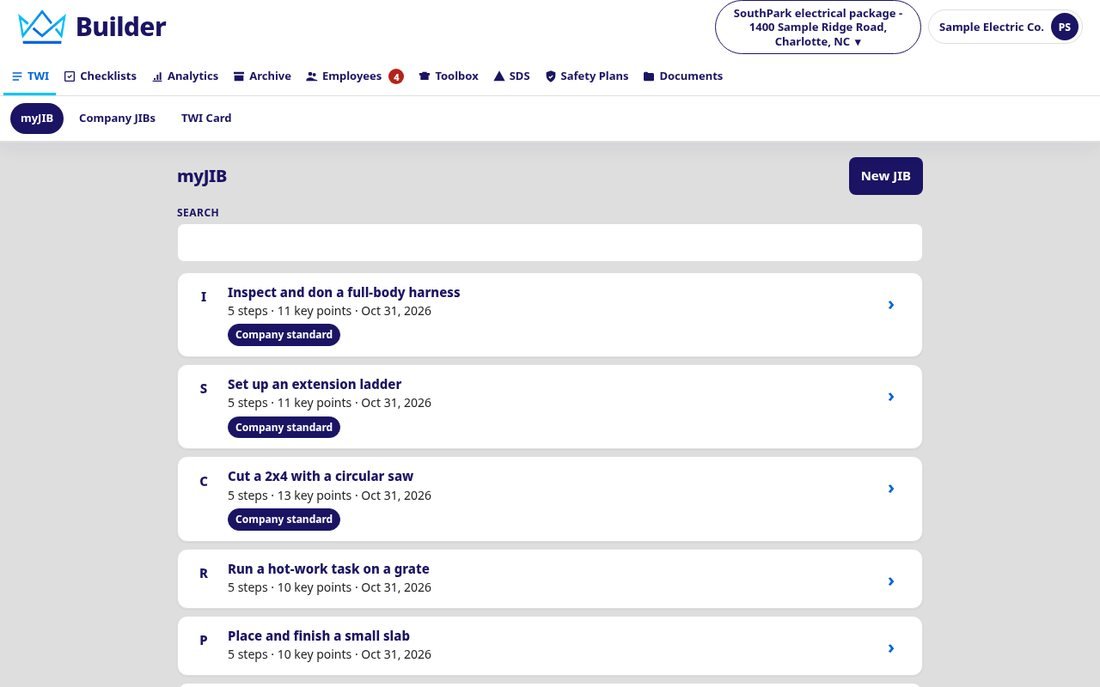
A Job Instruction Breakdown sheet (JIB) lists the important steps of a job, with key points tagged Safety, Quality or Knack, and the reason for each. TWI has three views: myJIB (your own sheets), Company JIBs (the company's approved copies) and TWI Card (a pocket reference).
Build a new JIB
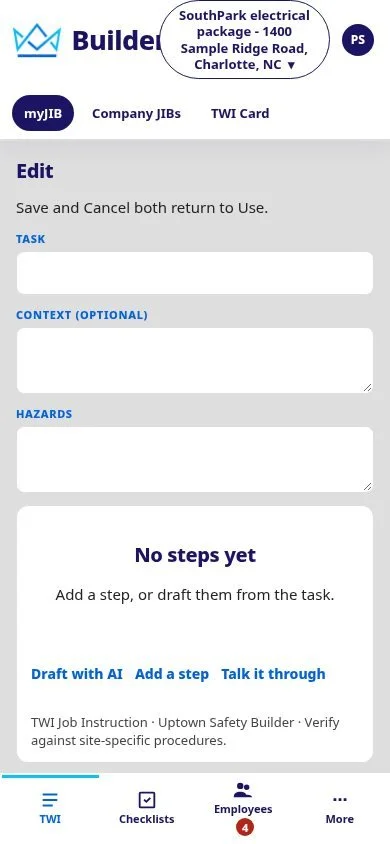
- Tap New JIB.
- Enter the Task, for example "Cut a 2x4 with a circular saw". Add Context and Hazards if you like.
- Tap Draft with AI for a first draft of the steps, or Add a step to write your own. Review every key point before use.
- For each key point, choose Safety, Quality or Knack and add the reason.
- Tap Save.
You can also tap Talk it through and describe a step out loud. Builder turns what you say into short steps and suggests fixes. Nothing is saved until you tap Save.
Share, print and copy
Open a sheet and use ⋯: PDF, Print, Share (a QR code and link to a read-only copy, with an optional expiry date), Make a copy, and Delete. On a Company standard, Make a copy is how a supervisor makes their own version.
Company JIBs
Supervisors read Company JIBs and use ⋯ → Make a copy to make their own. Only admins change or remove them. When an admin saves a newer version, workers trained on the older one show Needs refresher in Training.
Checklists: run an inspection
Start
- Tap Checklists, then Start inspection.
- Choose a category, then a checklist.
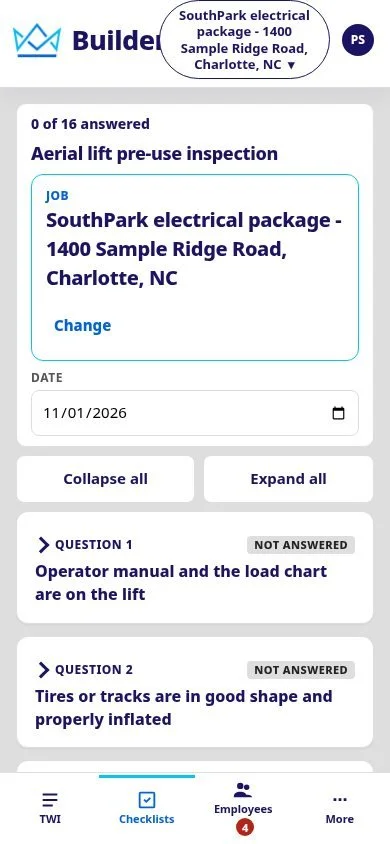
- The inspection opens on the job in the header with today's date. Tap Change to pick another job.
Answer
Every question is on one scrolling page. Tap a question to open it, then tap the answer (for example Pass, Fail or N/A). Add a Note / location and a Photo if useful. On a phone, Photo opens the camera. Answers save as you go, so you can leave and come back under Continue.
If the signal drops, the answer is kept on the phone and marked Not saved yet, will retry. Builder sends it again when the phone is back online. Wait for the label to disappear before you put the phone away.
When an answer is negative
Builder asks what happened. Choose Fixed now and describe the corrective action, or Leave open – I'll fix it and the item goes on your Open items list.
Finish and sign
- Tap Finish inspection. If anything is unanswered, Builder opens the first unanswered question.
- Type your name and tick the attestation.
- Submit. The inspection is saved to History and a PDF is filed in the Library under Completed Checklists.
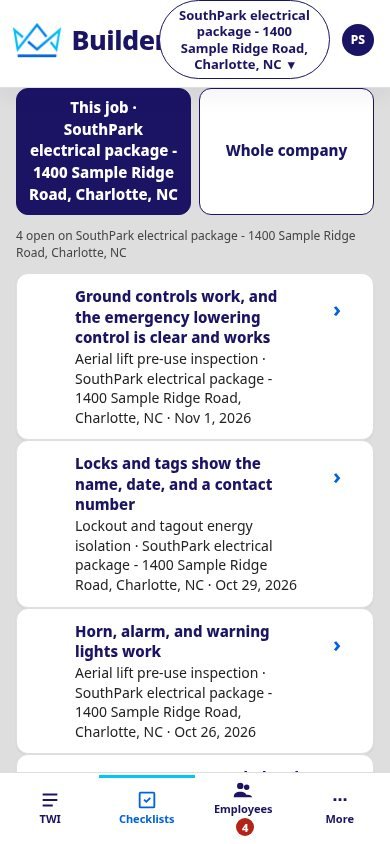
Close an open item
Open the finished inspection, tap Close item on the open item, say what you fixed and confirm. The sheet shows what was wrong, who found it and when.
Employees: roster, certs and training
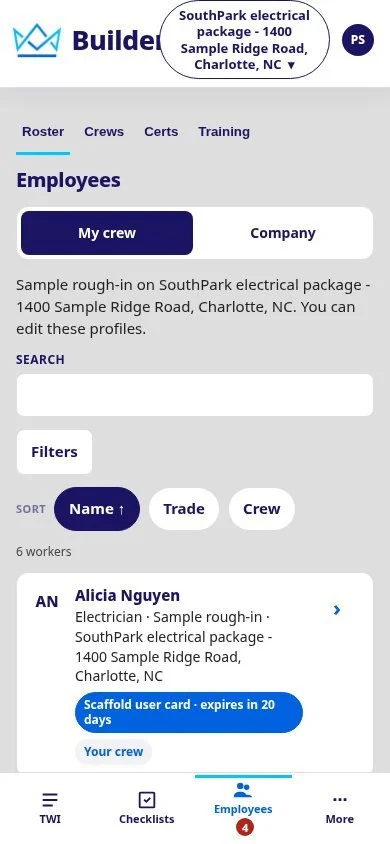
Employees has four tabs: Roster, Crews, Certs and Training. Admins see the whole roster. Supervisors choose My crew or Company and can edit only their own people. Viewers can read.
Add a worker (admins)
- On Roster, tap Add worker.
- Enter the name (required), phone, employee number, preferred language, trade and notes.
- Tap Save. The new worker is on the roster and Available until a supervisor adds them.
Employee numbers must be unique and phone numbers must look like phone numbers.
The worker profile
Tap a row to open the profile: phone, job, supervisor, employee number and language, then their most urgent certs, skills, training, talks and history. More actions lets you edit, move, add a cert, or deactivate a worker (admins).
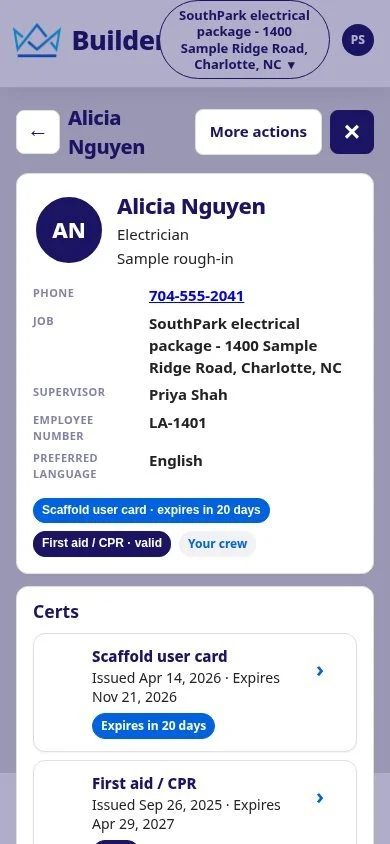
Certs
- On the profile, tap Add cert (or tap an existing cert).
- Pick the cert type. Builder fills in the default issuer and, if the type has a validity period, the expiry date.
- Set Issued and Expires, or switch on No expiration. Add the card image if you have one.
- Tap Save.
To renew, tap Renew on an existing cert, set the new dates and tap Save. Cert chips show expired, due within 30 days, 31–60, 61–90 days, valid, or no expiration.
Record training
- Under Training, tap Record training.
- Pick the JIB, the date, and the workers (or Add my whole crew).
- Tap Save.
- On each worker's row tick Shown, Tried out and Signed off. Builder records the date and who ticked it.
Toolbox talks
A supervisor holds a short safety talk on a job and records who was there. People are counted two ways, and both go to one attendance list: the supervisor tags people in, or anyone present checks in from the QR code on their own phone.
Hold a talk
- Tap Toolbox, then Start.
- Pick a talk from your company's library or a published Uptown Safety template.
- The talk opens on the header job, with its talking points on screen.
- Under Who is here, tap Add from my crew, or tap a person's ⋯ → Tag in.
- Hold up the QR code. A worker scans it, types their name and taps I'm here. No sign-in is needed.
- Tap Close talk when you finish. The QR stops working.
A person who was tagged in and then scans the QR stays on one line.
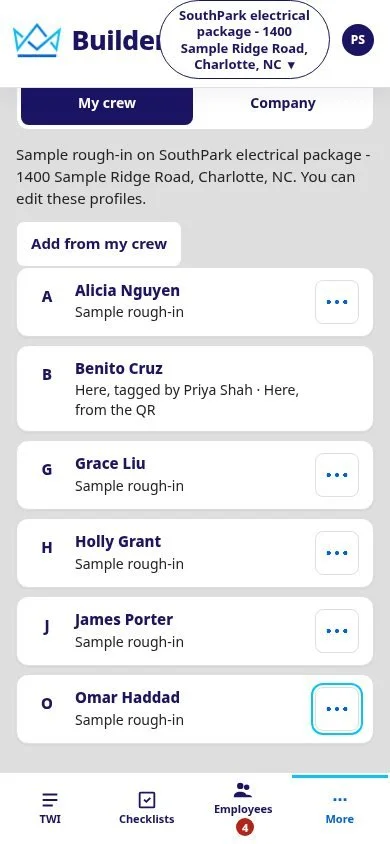
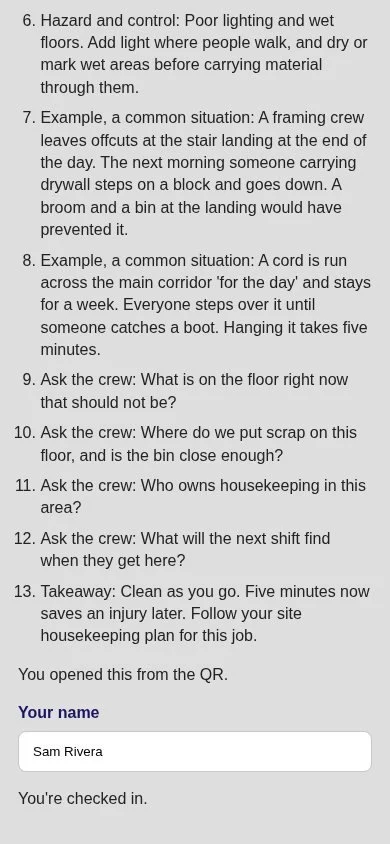
The Talk record button downloads a PDF with the talking points and a Who was here table.
Library, SDS and Safety Plans
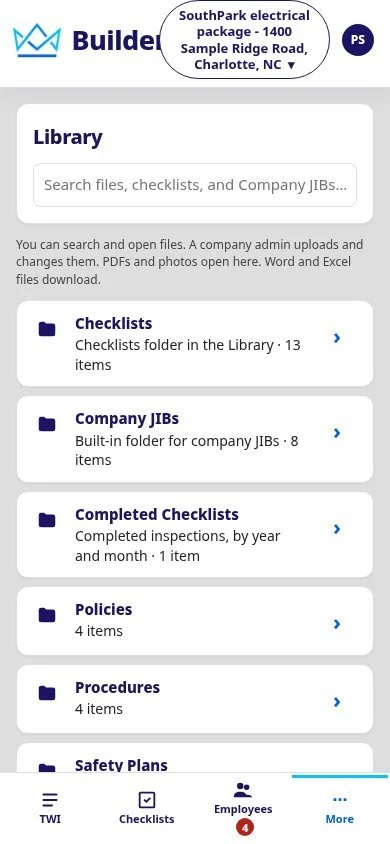
The Library holds the company's safety plans, SDS sheets, procedures, policies, filed inspections and the toolbox talk library. Everyone can search, open and download. Admins upload and organise. PDFs and photos open inside Builder; Word, Excel and PowerPoint files download.
Analytics, Archive and exports
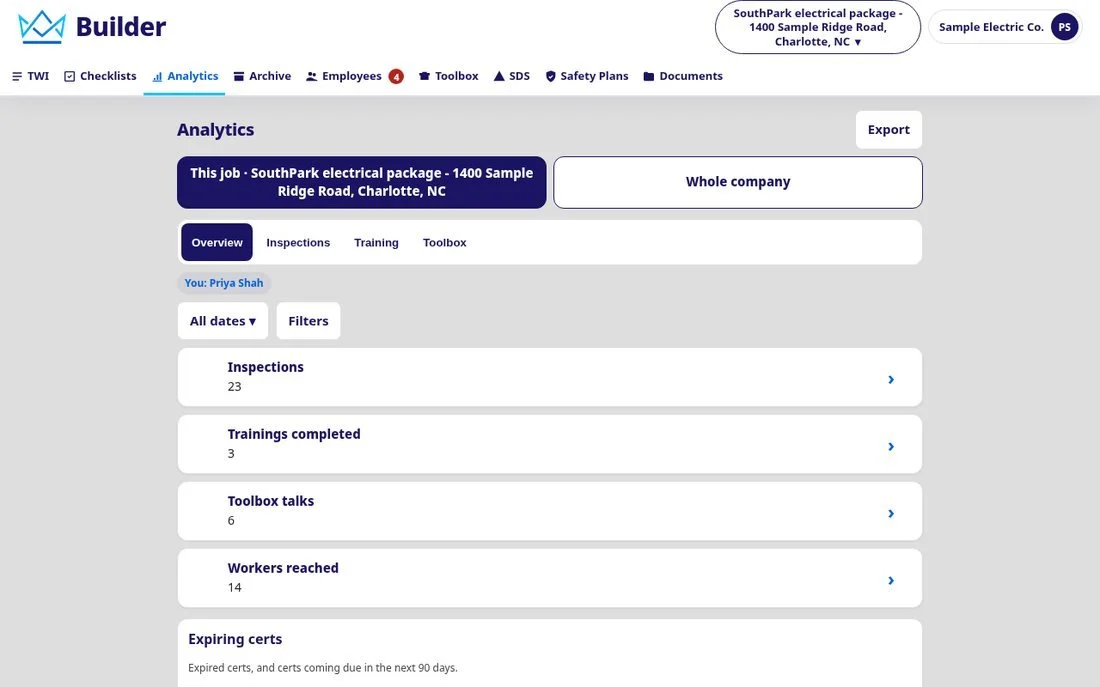
- Analytics has Overview, Inspections, Training and Toolbox tabs, with number tiles, charts, an expiring-certs table, and date and job filters. Admins see the whole company. Supervisors see their own work.
- Export gives a CSV or PDF of the tab you are on, for the dates and filters you chose.
- Archive collects completed records by year and month: finished checklists, toolbox talks and training sessions. Search or filter by kind and date.
- PDFs and exports follow the person's language.
For admins
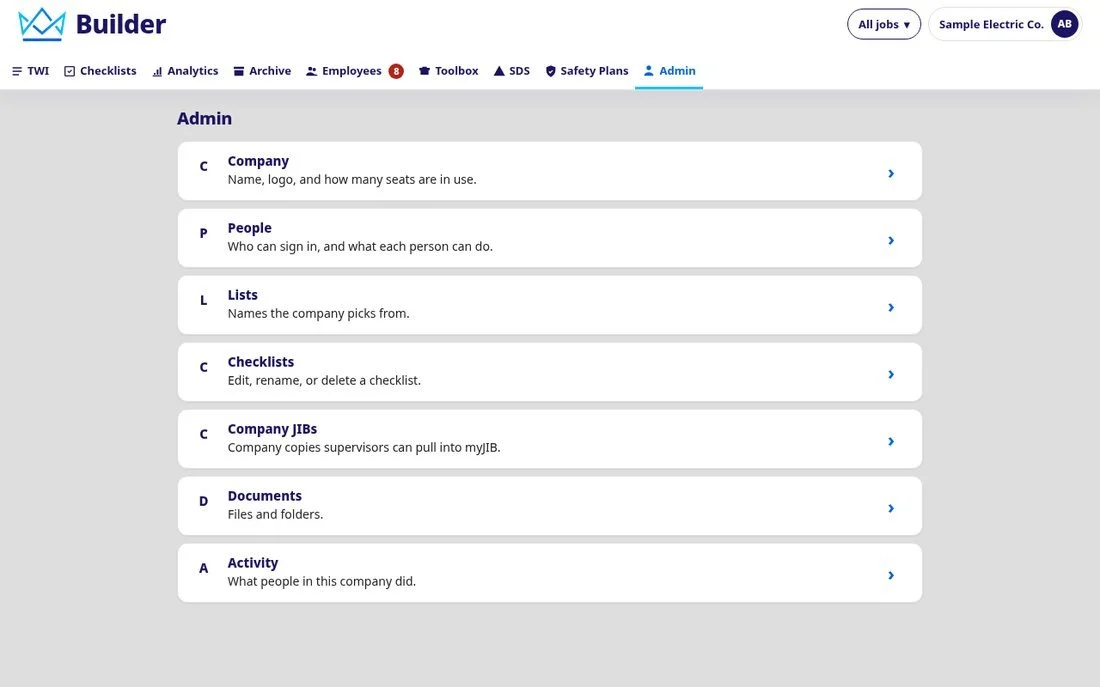
Admin home has seven sections: Company, People, Lists, Checklists, Company JIBs, Documents and Activity.
- Company. Name, address, phone, main contact, time zone and language. The time zone sets the day that dates and certificate countdowns follow. Add a logo (PNG or JPEG under 500 KB) for your PDFs.
- People. Tap + Invite, enter the email and name, and pick Admin, Supervisor or Viewer. Change a role or a person's access, resend an invite, send a password reset, or disable someone. A paid seat is an active Admin or Supervisor; Viewers do not use a seat.
- Lists. Jobs, skill types, cert types, trades, hazards, topic categories, checklist categories and tags. Archive a name to take it out of the pickers while keeping it on old records. Use Review and Merge into when the same name was typed two ways.
- Checklists. Create and edit checklists, or start from a published template. A copy from a template is your own and never changes when the template does.
- Company JIBs. Save a JIB from myJIB with ⋯ → Save to Company JIBs so supervisors can pull it.
- Documents. The company Library with admin controls. The Toolbox talks folder is your talk library: write a New talk or Copy a template.
- Activity. A newest-first list of what people in the company did.
Questions
Do workers need a login? No. Workers are roster records. They can check in to a talk from the QR code without signing in.
Someone has two supervisors. Is that allowed? No. A person has one supervisor at a time. Moving them to another supervisor asks you to confirm first.
What happens when I remove someone from my list? They go back to the pool. Nothing is deleted, and they stay on the roster.
My signal dropped during an inspection. Your answers are kept on the phone and marked Not saved yet, will retry. Builder sends them when you are back online.
I tapped a page and it says "Ask your admin for access." That module is not part of your access. An admin can change it under Admin → People.
Two of us edited the same record. The second save is refused with Changed by name. Reload. Reload, check what changed, and make your change again.
Can I use Builder in Spanish? Yes. Choose Español under My account. Menus, hints and messages follow your language, and so do PDFs and exports. Text that people typed stays as it was written.
Get help
Questions, or a new person to add to your company? Contact Uptown Safety. Ready to work? Open Builder.